
Introduction
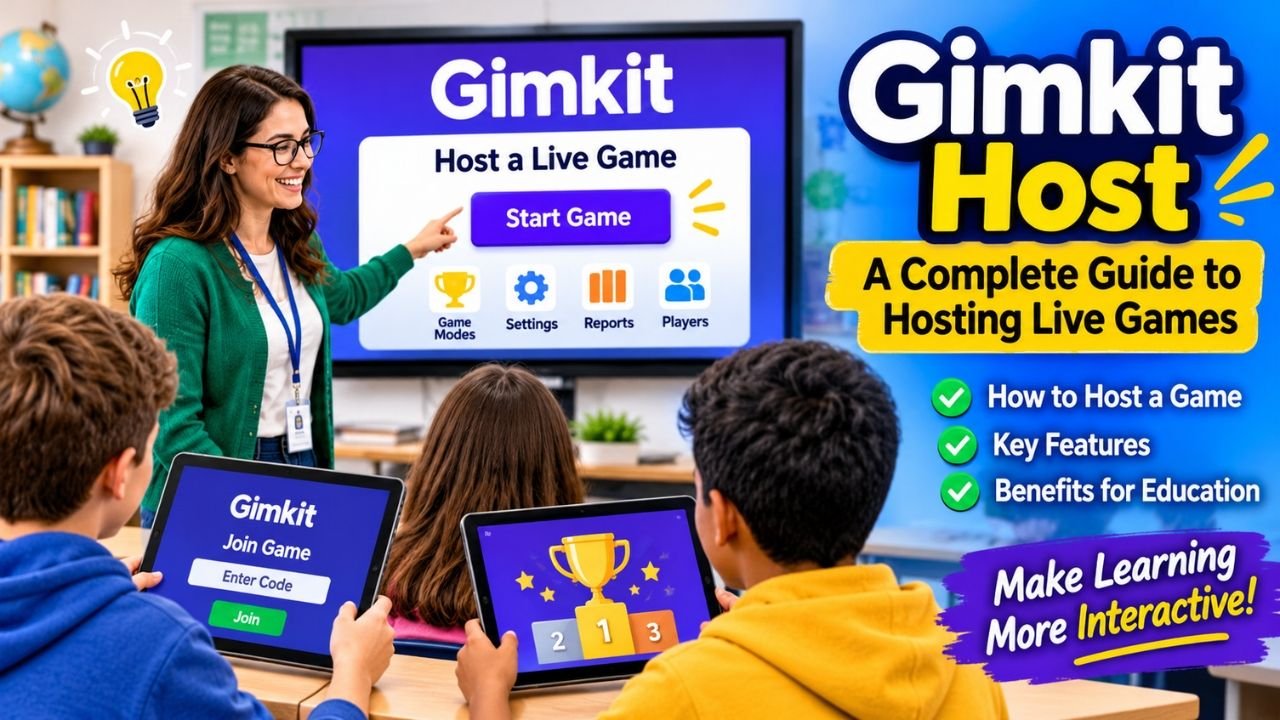
Online learning has become an important part of modern education, and interactive platforms are making classroom activities more enjoyable. One popular platform that combines education with entertainment is Gimkit. It allows teachers to create engaging quiz games where students can answer questions, earn virtual rewards, and compete with classmates. The Gimkit Host feature makes this experience possible by allowing educators to organize and manage live games.
Whether you are a teacher looking for a better way to engage students or someone interested in educational gaming, understanding how Gimkit Host works can be useful. From selecting question sets to choosing game modes and sharing access codes, the hosting process is designed to make classroom learning more interactive.
In this guide, we will explore what Gimkit Host is, how it works, its main features, benefits, and practical tips for organizing successful educational games.
What Is Gimkit Host?
Gimkit Host refers to the live game hosting functionality available on the Gimkit educational platform. It allows teachers and eligible account holders to organize quiz-based games for students and other participants.
Unlike traditional classroom quizzes, Gimkit turns questions and answers into an interactive gaming experience. Players answer questions to earn in-game currency and use their rewards according to the rules of the selected game mode.
The host controls important aspects of the experience, including selecting a Kit, choosing an available game mode, adjusting settings, and starting the session. Participants can join using a game code or another joining option provided by the host.
Gimkit is particularly useful for teachers who want to make revision sessions, classroom competitions, and knowledge assessments more enjoyable.
How Does Gimkit Host Work?
Gimkit Host works through a straightforward process that allows educators to organize live educational games.
First, the host signs in to the Gimkit website and selects a question set, commonly called a Kit. A Kit contains questions and answers related to a particular subject or topic.
After selecting a Kit, the host chooses an available game mode. Different modes provide different experiences, giving teachers flexibility when planning classroom activities.
The host can then customize the available settings according to the needs of the group. Once the game is ready, Gimkit provides joining information that participants can use to enter the session.
After students join, the host starts the game. Participants answer questions, interact with the selected game mode, and compete or collaborate depending on the format.
This process makes Gimkit Host a convenient option for teachers who want to combine learning objectives with interactive entertainment.
How to Host a Game on Gimkit
Hosting a live game on Gimkit does not require advanced technical knowledge. The platform provides a simple process that beginners can follow.
Step 1: Visit the Official Gimkit Website
Start by visiting the official Gimkit website at https://www.gimkit.com/. Sign in using your account credentials. If you do not already have an account, follow the registration instructions available on the platform.
Step 2: Select a Kit
After signing in, choose a Kit from your available question sets. A Kit is a collection of educational questions that players will answer during the game.
You can select a previously created Kit or prepare a new one based on your lesson, subject, or classroom requirements.
Step 3: Choose a Game Mode
Once you have selected a Kit, choose the game mode you want to host. Gimkit offers different gameplay experiences, and availability may depend on your account plan and current platform offerings.
Consider your learning objectives when making this selection. For example, a competitive format may be suitable for classroom revision, while a cooperative experience may encourage teamwork.
Step 4: Customize the Game Settings
Before starting the session, review the available game settings. Depending on the selected mode, you may be able to adjust the game duration, goals, player options, and other rules.
Choosing appropriate settings helps ensure that the activity matches the students’ abilities and the time available for the lesson.
Step 5: Share the Game Code
After configuring the session, share the joining code or other available joining information with your participants.
Students can visit https://www.gimkit.com/join and enter the code provided by the host. They should follow the on-screen instructions to enter the game.
Step 6: Start the Live Game
Once participants have joined the lobby, review the player list and start the game when everyone is ready.
During the session, the host can use the available controls to manage the experience and monitor the game.
Following these steps makes it easier to organize a smooth Gimkit hosting session.
Important Features of Gimkit Host
Gimkit Host offers several useful features that help teachers manage interactive learning activities.
1. Live Game Hosting
The main feature allows teachers to organize real-time educational games. Students can participate simultaneously, making lessons more engaging than traditional question-and-answer sessions.
2. Multiple Game Modes
Gimkit provides different game modes that introduce variety into classroom activities. Depending on the available options, teachers can select experiences that emphasize competition, cooperation, or individual progress.
3. Customizable Game Settings
Hosts can adjust available settings to match their teaching requirements. These options help teachers control different aspects of the gaming experience.
4. Easy Game Joining
Participants can join using a game code or supported joining method. This makes it easier to bring an entire classroom into the same activity without complicated setup procedures.
5. Player Management
Hosts can view participants in the game lobby and use available management controls when necessary. This is helpful when organizing larger classroom sessions.
6. Leaderboards
Leaderboard features allow participants to see how they are performing in supported game modes. Friendly competition can motivate students to participate and improve their understanding.
7. Game Reports
Gimkit also provides reporting features that can help educators review student performance. These reports can provide useful information about participation and question-answering results.
Benefits of Using Gimkit Host in Education
Gimkit Host offers several advantages for modern classrooms. Its combination of educational questions and interactive gameplay can make learning more interesting.
Makes Learning More Enjoyable
Traditional revision activities can sometimes become repetitive. Gimkit introduces game-based elements that encourage students to participate more actively.
Instead of simply completing a worksheet, students can answer questions while enjoying a competitive or collaborative experience.
Encourages Student Participation
Some students may hesitate to participate in ordinary classroom discussions. Interactive games can create a more relaxed environment where learners feel encouraged to answer questions.
Supports Knowledge Revision
Teachers can use Gimkit to review previously taught topics. Repeated exposure to important questions can help students identify areas where they need additional practice.
Promotes Friendly Competition
Game-based activities can introduce healthy competition among classmates. Leaderboards and virtual rewards can encourage students to concentrate and improve their performance.
Saves Classroom Preparation Time
Once a suitable Kit is available, teachers can use it to organize different learning activities. This makes it easier to conduct revision sessions without preparing an entirely new traditional quiz every time.
Supports Different Learning Environments
Gimkit can be used in suitable classroom, remote learning, and group learning situations. Participants need a compatible device and internet connection to access the game.
Gimkit Host vs. Gimkit Join: What Is the Difference?
Gimkit Host and Gimkit Join are two related but different parts of the platform.
Gimkit Host is designed for the person organizing the live session. The host selects the Kit, chooses the game mode, adjusts settings, and starts the activity.
Gimkit Join is intended for participants who want to enter an existing game. Students typically visit the joining page and enter the code supplied by their teacher.
The difference is simple: hosting means creating and managing the live gaming experience, while joining means participating in a game that someone else has organized.
Understanding this distinction helps users access the correct page and avoid confusion when trying to enter a classroom activity.
Tips for Hosting a Successful Gimkit Game
Although hosting a Gimkit game is relatively simple, a little preparation can make the experience more effective.
Choose relevant questions: Make sure the selected Kit matches the subject students are studying.
Select an appropriate game mode: Consider the age group, classroom size, and learning objectives before choosing a mode.
Explain the rules: Give students a brief explanation of how the game works before starting.
Check internet connectivity: Make sure the host and participants have reliable internet access.
Set reasonable time limits: Choose settings that allow students enough time to understand and answer questions.
Encourage teamwork: When appropriate, choose collaborative activities that help students learn from one another.
Review the results: Use available reports and performance information to identify topics that may need further explanation.
These simple practices can help teachers make their Gimkit sessions more organized and productive.
Common Gimkit Host Problems and Their Solutions
Like other online platforms, Gimkit users may occasionally experience technical difficulties.
Students Cannot Join the Game
If students cannot enter a live session, first check whether they are using the correct game code. Make sure the game is still active and that participants are following the correct joining instructions.
The Game Is Not Starting
If a game does not start, check whether the host has completed the required setup steps. Review the selected mode and available settings before trying again.
Internet Connection Problems
An unstable internet connection can interrupt gameplay. Restarting the network connection or switching to a more reliable network may help resolve the problem.
The Wrong Kit Was Selected
If the selected questions do not match the lesson, return to the appropriate setup area when possible and choose the correct Kit before beginning the activity.
Login Difficulties
Users who cannot access their accounts should check their login information and follow the account recovery instructions provided by Gimkit.
For additional assistance, users can visit the official Gimkit Help Center.
Is Gimkit Host Free to Use?
Gimkit offers different account plans, including a free Basic option and paid plans with additional capabilities.
The features available to a host may depend on the account type, subscription, and current platform policies. Some game modes and advanced options may have access restrictions.
Users should check the official Gimkit website for the latest information about pricing, account limitations, and available features before choosing a plan.
Frequently Asked Questions About Gimkit Host
What is Gimkit Host used for?
Gimkit Host is used to organize and manage live educational quiz games. Teachers can select question sets, choose game modes, share joining information, and start classroom activities.
How do I access Gimkit Host?
Visit the official Gimkit website, sign in to your account, select a Kit, and choose the live game hosting option.
Can students join a Gimkit-hosted game?
Yes. Students can join an active game using the code or joining link shared by the host.
Do I need an account to host a Gimkit game?
Hosting requires access to an eligible Gimkit account. Users should follow the platform’s current account and eligibility requirements.
Can I customize Gimkit games?
Yes. Hosts can adjust the settings available for their selected game mode to create an experience that suits their classroom requirements.
Is Gimkit suitable for classroom learning?
Yes. Gimkit is designed to support interactive educational activities and can be used for revision, practice, and classroom engagement.
Can Gimkit Host help teachers evaluate students?
Yes. Available game reports and performance information can help teachers understand how students performed during an activity and identify areas that may require additional practice.
Conclusion
Gimkit Host is a useful feature for teachers and educators who want to make classroom learning more interactive and enjoyable. By combining educational questions with game-based activities, the platform provides an alternative to traditional revision methods.
From selecting a Kit and choosing a game mode to sharing joining codes and managing participants, the hosting process is designed to be accessible to beginners. Its interactive features, leaderboards, customizable settings, and reporting options can make it a valuable addition to different learning environments.
Whether you are organizing a classroom competition, reviewing an important lesson, or encouraging students to participate more actively, Gimkit Host provides a convenient way to bring educational games into your teaching routine. With proper preparation and suitable game settings, teachers can create engaging activities that support learning while keeping students motivated.